Verizon Fios – Fios Extender (E3200) Mesh WiFi Extender
 Dual-Antenna Range Extender
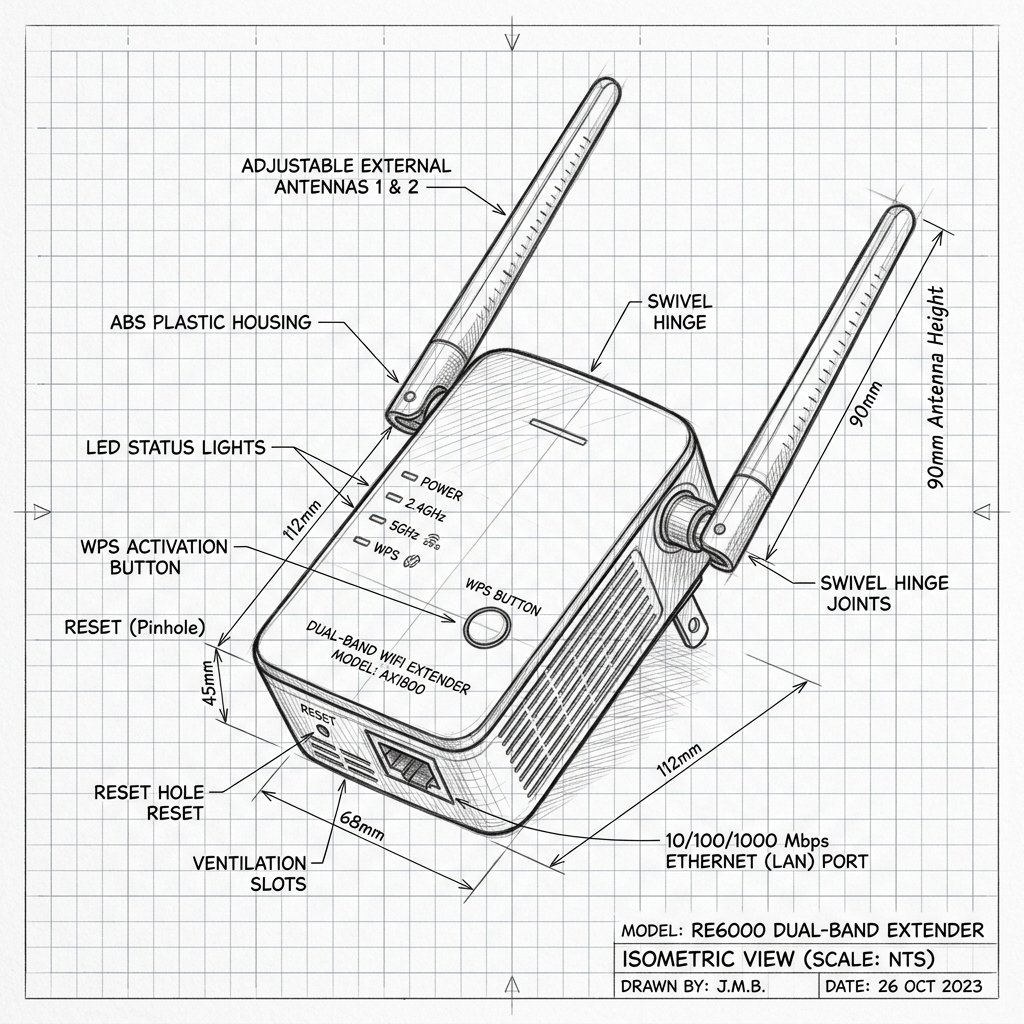
Verizon Fios Fios Extender (E3200) Diagram
Reference this technical blueprint during setup to locate the power input, status LED indicators, one-touch WPS pairing button, and Ethernet port on your device.
The Verizon Fios Extender (E3200) is a mesh WiFi extender designed to work with compatible Verizon Fios routers (such as the G3100 and certain Verizon Internet Gateways), cloning the same WiFi name and password and extending coverage using self‑organizing network (SON) technology over wireless, Ethernet, or coax backhaul.
Quick 3-Step Checklist
- Check router compatibility: Make sure you are using a compatible Verizon router or Internet Gateway (e.g., G3100). Newer routers like the CR1000A may require the extender to be hardwired via coax/Ethernet.
- Verify Fios internet & WiFi: Confirm your Fios router has working internet and WiFi in its immediate area before adding the extender.
- Decide backhaul type: Choose whether to pair the E3200 wirelessly or via Ethernet/coax; wired backhaul generally offers the best performance.
Verizon Fios Extender E3200 Overview
- Mesh extender: The E3200 is part of Verizon’s mesh WiFi system; once paired, it clones your router’s SSID and password, and uses Self‑Organizing Network (SON) technology to steer devices between nodes.
- Backhaul options: Supports wireless pairing with compatible gateways and wired backhaul via Ethernet or coaxial cable.
- LED indicators: Front status LED indicates pairing status and signal quality. Solid white is the target state for a healthy mesh connection.
Reality Check: Compatibility with CR1000A. If you are using the newer Verizon CR1000A router, wireless pairing often fails or is unsupported. In this case, you must use a hardwired Ethernet or Coax connection between the router and the E3200 to establish a stable mesh link.
Wireless Pairing – Unified/Pair Button
For compatible Verizon gateways, you can use the unified “Pair” button to connect the extender wirelessly.
Step 1: Place and Power On Near Router
- Plug the E3200 into a power outlet near the Verizon router for initial pairing.
- Wait for the front status LED to show solid yellow, indicating it is ready to pair.
Step 2: Use the Pair Button
- Press and hold the Pair button on the E3200 for about 3 seconds until the LED blinks blue.
- Within 2 minutes, press the Pair button on your Verizon router.
- Both devices will blink blue during the handshake. Once paired, the extender's LED will turn solid white.
Step 3: Move to Final Location
- Unplug the E3200 and move it to a midpoint between your router and the dead zone.
- Plug it in and watch the LED:
- Fast blinking yellow: Too close to the router; move it slightly further away.
- Slow blinking yellow: Too far from the router; move it closer.
- Solid white: Optimal connection.
Wired Pairing – Ethernet or Coax Backhaul
Wired backhaul is the recommended, most reliable way to connect your E3200.
Step 1: Connect via Ethernet or Coax
- Connect an Ethernet cable from a LAN port on your router to the E3200, or connect via a coaxial cable if your home is wired for Fios coax.
- Plug the extender into a power outlet.
Step 2: Automated Pairing
- Most routers will automatically detect the wired extender and pair it to the mesh network. If it doesn't pair within 5 minutes, press the Pair button on both devices as described in the wireless section.
- Confirm the LED turns solid white. Once wired, the extender provides a significantly stronger, more stable mesh connection.