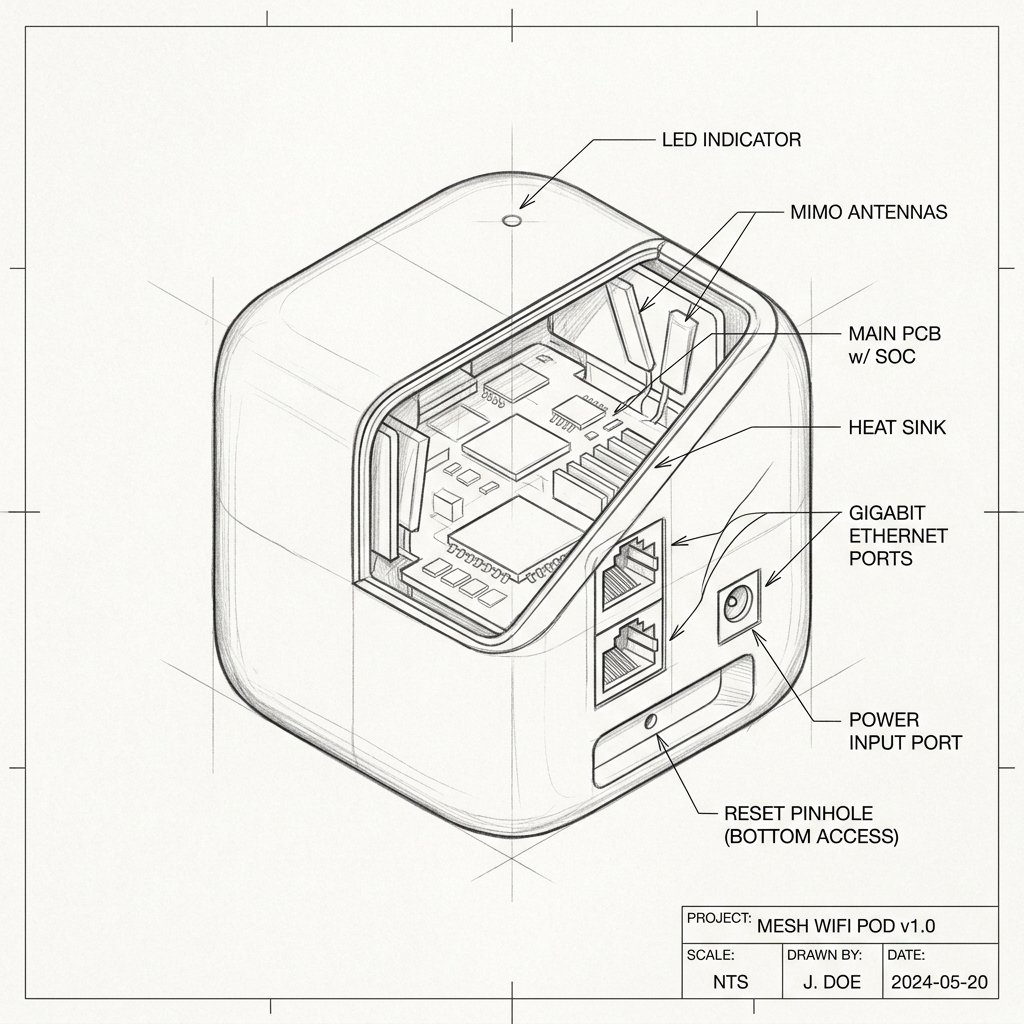
 Mesh Node / Pod
Hardware Safety & Status
Cox Panoramic Wifi Pods 2.0 Firmware Guide
Monitor your device's Power and System LEDs during the upgrade process. Keep the device plugged in and connected via Ethernet or stable WiFi until the reboot cycle finishes.
Solid Power LED
Stable Network
Do Not Unplug
Firmware Updates for Cox Panoramic Wifi Pods 2.0
Cox Panoramic Wifi Pods 2.0 receive firmware updates automatically through the Cox network and Panoramic Wifi Gateway. There is no normal manual firmware download or file-upload process for customers.
How Automatic Updates Work
- Keep the gateway and Pods powered on and connected to the internet.
- Cox sends firmware updates to compatible Pods in the background.
- Updates may occur during periods of low network activity.
- A Pod may briefly restart while installing new software.
- The Pod’s LED may flash or change color during an update.
- Do not unplug, reset, or move the Pod while an update is in progress.
If a Firmware Update Fails
- Confirm that the Panoramic Wifi Gateway is online.
- Open the Cox Panoramic Wifi app and check whether the Pod shows as online.
- Power-cycle the gateway and Pod.
- Move the Pod closer to the gateway if it has a weak connection.
- Wait for the Pod to reconnect and allow Cox time to retry the update.
- Contact Cox support if the Pod continues to show an error or remains offline.