Netgear EAX80 Firmware Update Guide
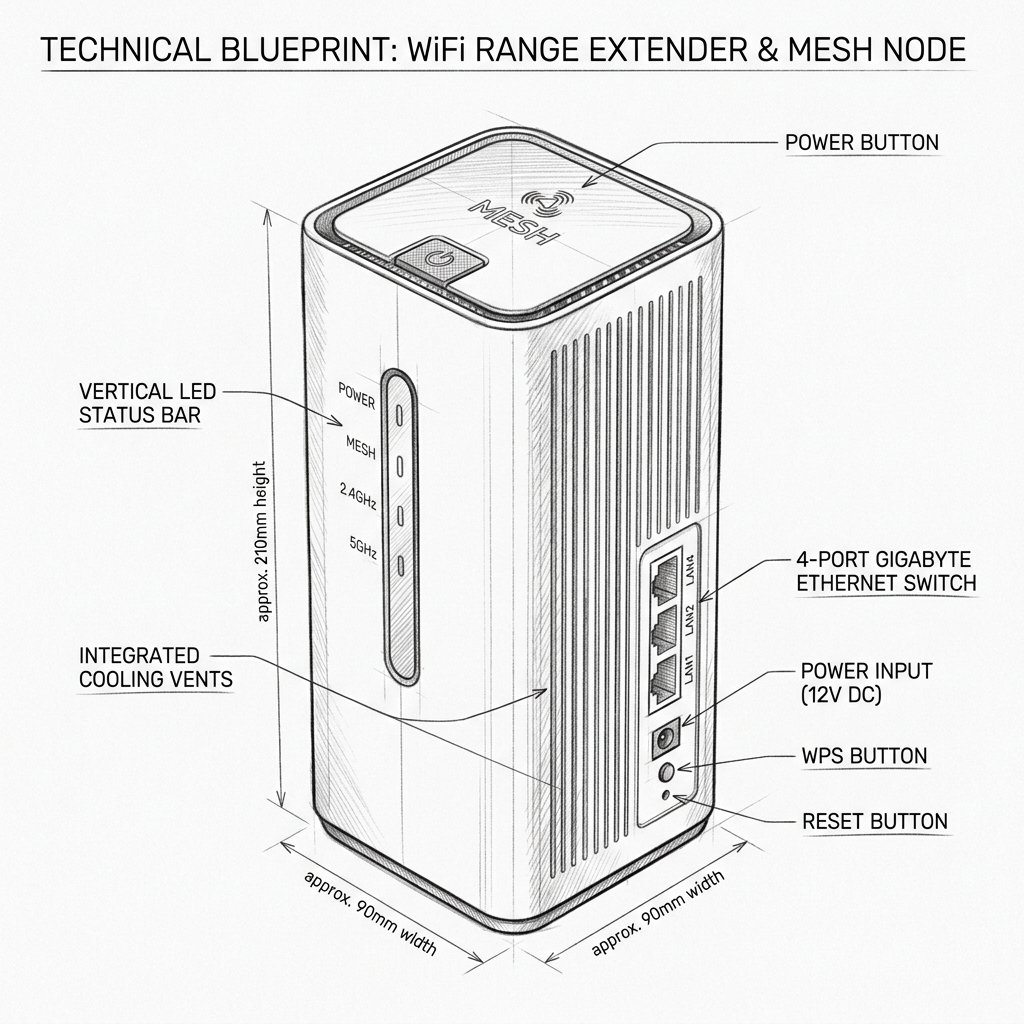 Desktop High-Power Tower
Hardware Safety & Status
Netgear EAX80 Firmware Guide
Monitor your device's Power and System LEDs during the upgrade process. Keep the device plugged in and connected via Ethernet or stable WiFi until the reboot cycle finishes.
Solid Power LED
Stable Network
Do Not Unplug
Keeping the EAX80 firmware up to date helps maintain speed, security, and stability.
Check for updates via Nighthawk App
- Open the NETGEAR Nighthawk App.
- Select your EAX80 extender.
- Look for a Firmware Update or Check for Updates option.
- If an update is available, follow the on-screen instructions to install it.
Check for updates via browser
- Connect to the extender’s Wi-Fi and open
http://mywifiext.netor192.168.1.250. - Log in to the web interface.
- Go to the firmware or administration section and check for updates.
- Use automatic update if available, or manually upload the firmware file downloaded from NETGEAR’s EAX80 support page.
Apply the update safely
- Do not unplug the extender during a firmware update.
- Wait until the extender completes the update and reboots.
- Verify the new firmware version in the status page.