Reset Instructions for NETGEAR EX7700
 Desktop High-Power Tower
Hardware Reset Reference
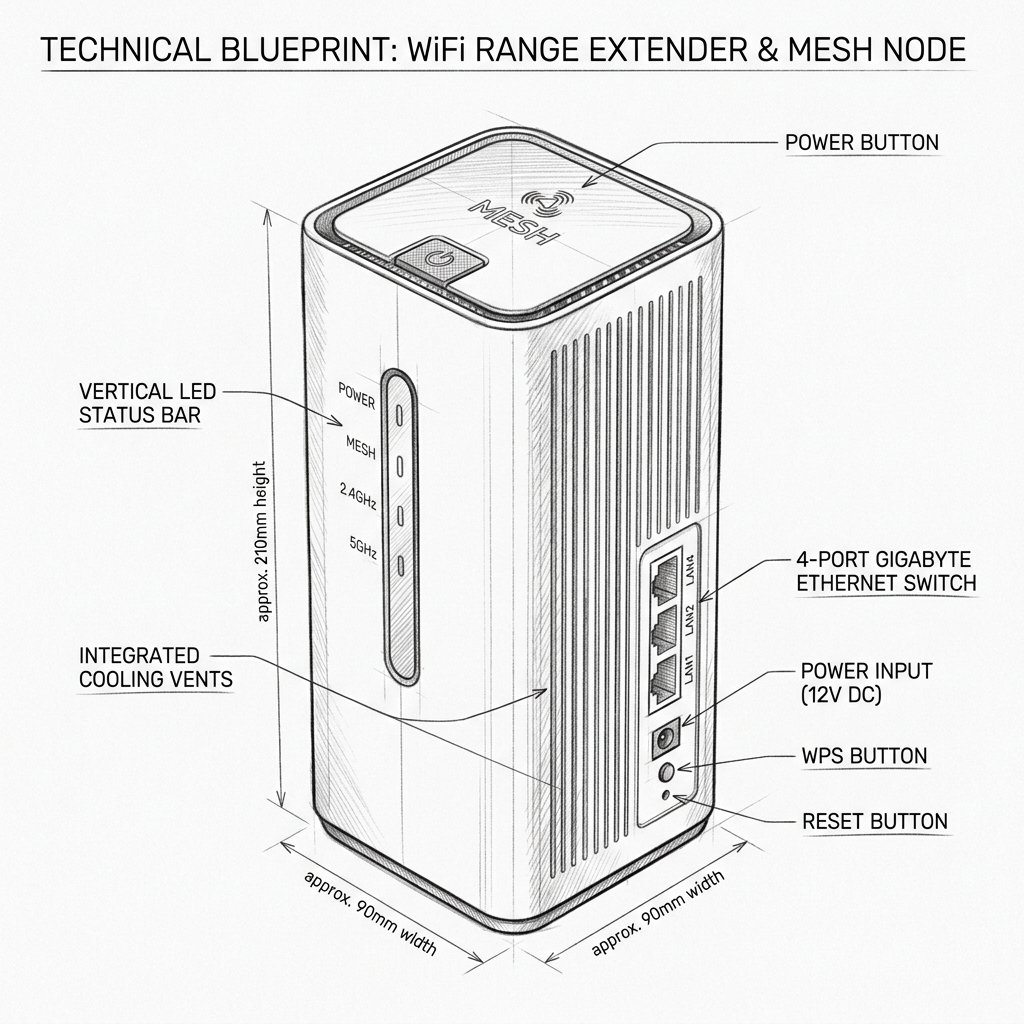
Netgear EX7700 Reset Location
Locate the dedicated physical Reset pinhole or recessed button shown in the diagram. Use a paperclip or SIM eject tool to press and hold according to the steps below.
Reset Button / Pinhole
LED Blink Confirmation
Soft Reset (Power Cycle)
- Unplug the EX7700 from the power outlet.
- Wait 10–15 seconds.
- Plug it back in and wait for the Power LED to go solid.
Factory Reset (Restore Defaults)
- Make sure the extender is powered on.
- Locate the recessed Reset button on the back or bottom.
- Use a paperclip or pin to press and hold the Reset button for about 8–10 seconds.
- Release when all LEDs blink, indicating the reset has started.
- Wait for the extender to reboot and return to factory defaults.
- Repeat setup using the Nighthawk app, browser, or WPS.
Warning: Resetting your NETGEAR extender can erase saved settings such as WiFi names, passwords, and custom options. Always try a simple power cycle (unplug, wait 10–15 seconds, plug back in) before performing a factory reset. If you do factory reset, make sure you know your router’s WiFi name and password, because you’ll need to set up the extender again from scratch.