How to Update Firmware on Plume SuperPods
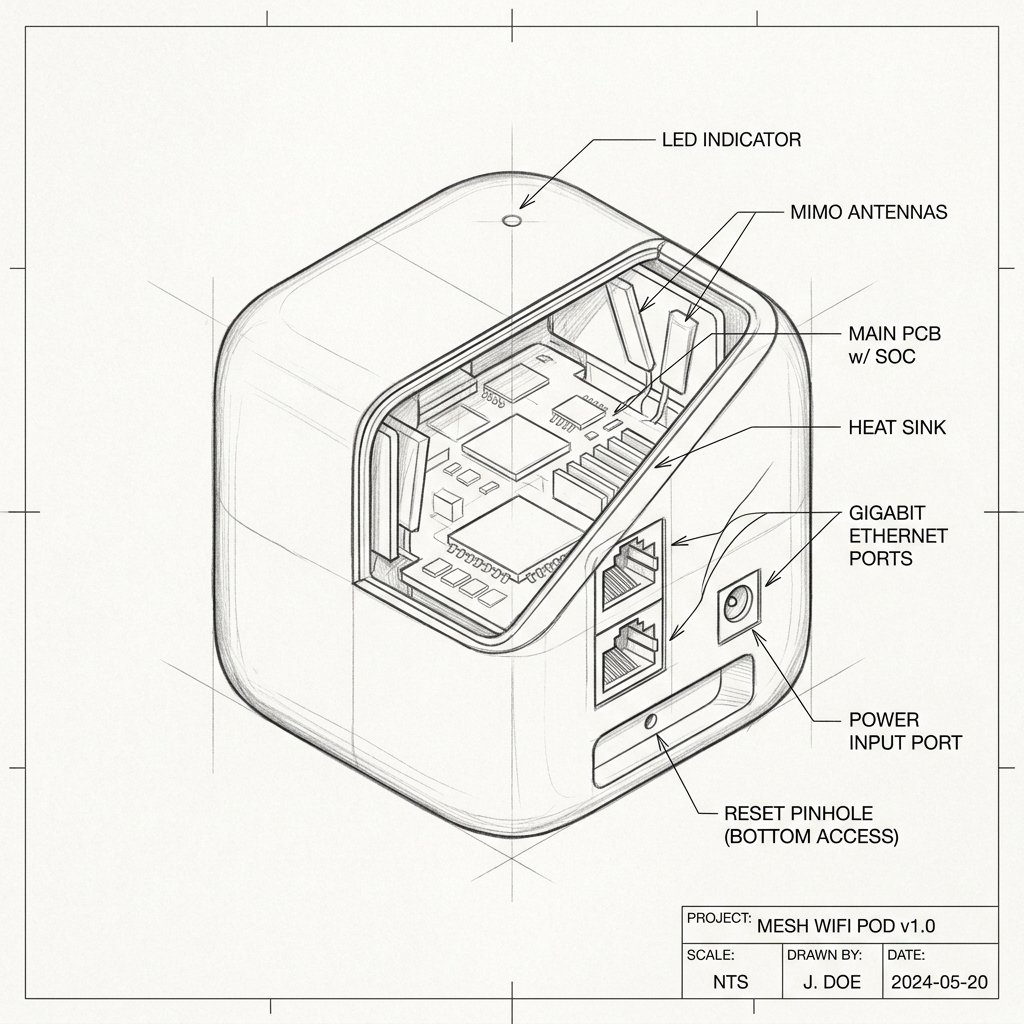 Mesh Node / Pod
Plume SuperPod Firmware Guide
Monitor your device's Power and System LEDs during the upgrade process. Keep the device plugged in and connected via Ethernet or stable WiFi until the reboot cycle finishes.
Plume SuperPods use automatic, cloud-managed firmware updates. You don’t manually download or upload firmware files—updates are delivered by Plume in the background when your network is idle.
Reality Check: No Manual Downloads. There is no manual firmware file upload interface for Plume SuperPods. If you suspect a firmware problem, rely on the app, automatic updates, and Plume support rather than searching the internet for .bin or .img files.
Step 1: Confirm Your SuperPods Are Online
- Open the Plume Home / HomePass app on your phone and ensure your SuperPods appear as online (green/healthy) in the app.
- Make sure your modem (and any router you use) has a working internet connection. SuperPods must be online to receive firmware updates from the cloud.
Step 2: Let Automatic Firmware Updates Run
- Plume updates firmware automatically overnight or when the network is not busy, prioritizing live traffic ahead of OS updates so your calls and streaming aren’t interrupted.
- If new firmware is available during installation or later, the SuperPods will attempt to update; the app can display update progress for each pod.
- You cannot trigger a manual firmware update from within the app—your role is to keep pods powered and online while Plume handles updates in the background.
Step 3: Check the Firmware Version (Optional)
- In the Plume app, open your network or pod details and look for the Firmware or Software version field; this shows the current version running on each SuperPod.
- Plume’s support site provides SuperPod device release notes listing firmware versions and changes, so you can compare your version against the latest release if needed.
Warning: Firmware updates will temporarily reboot pods. Short drops in connection while the network is idle are normal during this process. Do not unplug a pod while it is actively applying an update.
Step 4: Troubleshoot Failed Firmware Updates
- If the app reports that an update failed on a SuperPod, first restart the pod and your modem/router: unplug each for 30 seconds, plug back in, and wait for internet and pods to come online.
- Ensure the pod is correctly plugged into a working outlet and, if wired, that the Ethernet cable is secure at both ends.
- Use the app to check whether the pod is online again. Once stable, Plume will retry firmware updates automatically.
Step 5: Delete and Re-Add Only If Necessary
- If a pod continuously fails updates or stays offline, perform a factory reset. Remember, Plume pods do not have physical reset buttons. You must open the HomePass app, select the pod, and tap Delete Pod.
- After deleting it, wait a moment for the pod to wipe its memory, then re-add it to your network in the app as a new pod.
- After re-adding, keep the pod powered and online; any required firmware will be downloaded and installed automatically by Plume.