Reset Instructions for Plume SuperPod
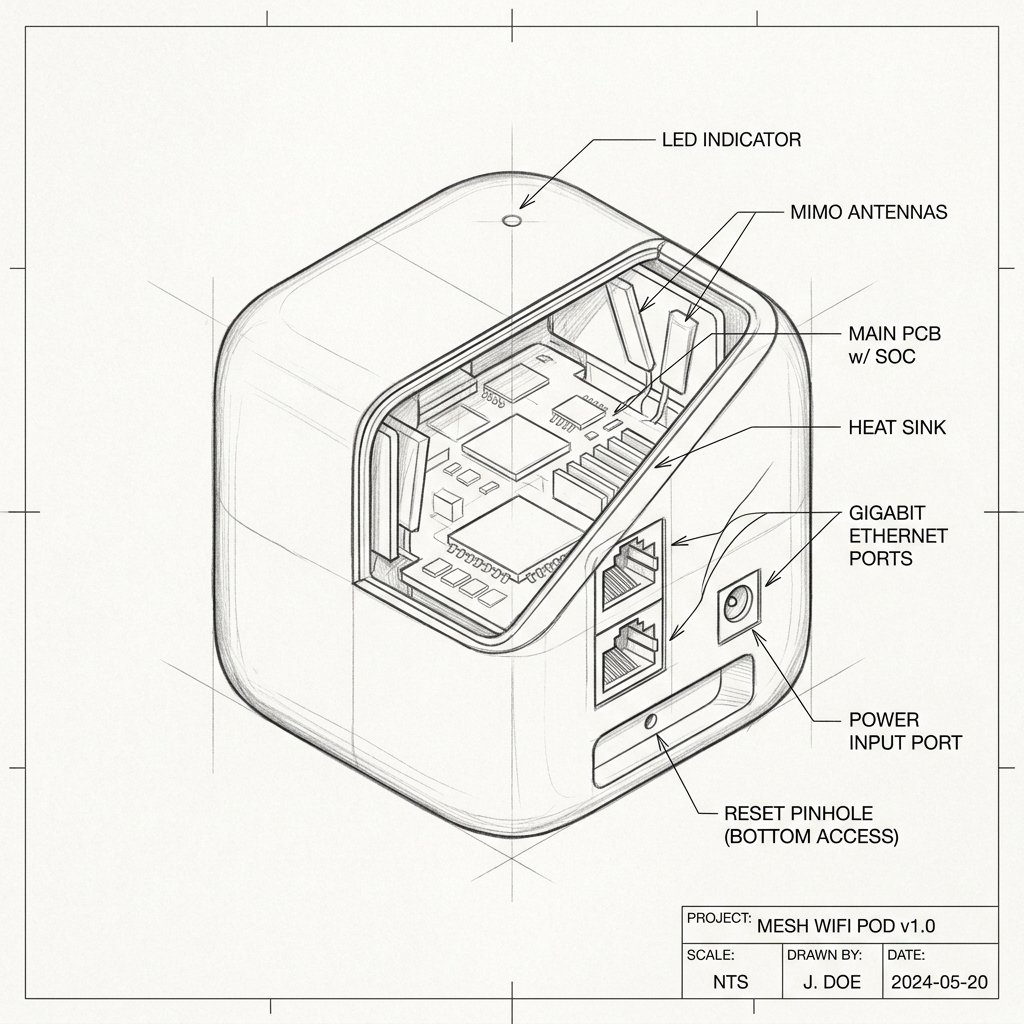 Mesh Node / Pod
Hardware Reset Reference
Plume SuperPod Reset Location
Locate the dedicated physical Reset pinhole or recessed button shown in the diagram. Use a paperclip or SIM eject tool to press and hold according to the steps below.
Reset Button / Pinhole
LED Blink Confirmation
Soft Reset (Power Cycle)
- Unplug the SuperPod from the wall outlet.
- Wait about 10–15 seconds.
- Plug it back in and wait for it to reconnect to the cloud (the LED will pulse, then turn off).
Factory Reset (Account Deletion)
- Open the Plume/HomePass app on your smartphone.
- Navigate to the settings or hardware section to view your active pods.
- Select the specific SuperPod you want to reset, tap the menu (three dots), and select Delete Pod.
- The pod will wipe its local configuration and reboot. The LED will begin pulsing slowly to indicate it is back in setup mode.
- To re-add the pod, you must go through the "Add a Pod" sequence in the app from the beginning.
Warning: No Physical Reset Button. Plume SuperPods do not have a physical "Factory Reset" pinhole. The only way to factory reset a pod is to delete it from your Plume/HomePass account via the mobile app. Once deleted, it will wipe its internal configuration and can be added as a fresh device to a new or existing network.