How to Update AT&T All‑Fi Extender 4991 Firmware
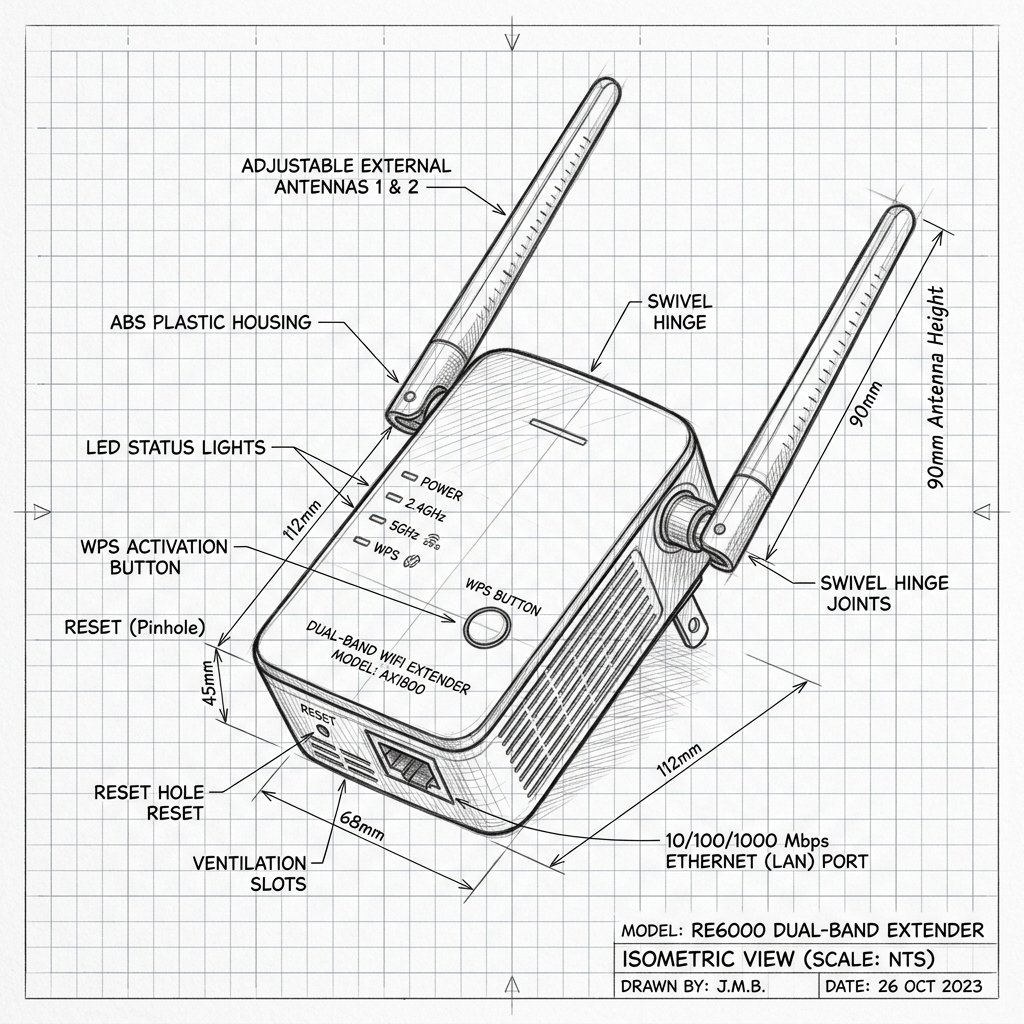 Dual-Antenna Range Extender
AirTies AirTies 4991 Firmware Guide
Monitor your device's Power and System LEDs during the upgrade process. Keep the device plugged in and connected via Ethernet or stable WiFi until the reboot cycle finishes.
Unlike generic Wi‑Fi extenders, the AirTies 4991 is a managed part of the AT&T All‑Fi ecosystem. Firmware and software updates are pushed automatically through your BGW620 All‑Fi Hub and AT&T’s backend systems. You do not need to download files or log into a web interface to manually trigger an update.
Reality Check: No Manual Downloads. There is no public AT&T or AirTies download page where you can get a firmware file (like a .chk or .img) for the 4991. Generic instructions online about logging into local portals (like air4920.local) do not apply to this tightly integrated AT&T device.
Step 1: Keep the Hub and Extender Online
- Ensure your BGW620 All‑Fi Hub is powered on, connected to the internet, and broadcasting Wi‑Fi.
- The 4991 extender must maintain a stable connection to the hub to receive background updates.
Step 2: Watch the LED Indicators
- When a software update is pushed, the front LED on the 4991 will change from solid white to a pulsing amber or red/green pattern.
- This specific pattern means the device is currently downloading and installing new software.
Warning: Do not unplug, move, or restart the 4991 extender while the LED is pulsing amber or red/green. Interrupting the power during an active firmware installation can corrupt the software and permanently break the device. Wait until the LED returns to solid white.
Step 3: Verify Status in Smart Home Manager
- Open the AT&T Smart Home Manager app and check the extender’s hardware card.
- If the app shows an available update or prompts you to refresh your hardware, follow the on-screen instructions.
- A green check mark indicates the extender is fully updated, online, and successfully integrated into the mesh network.
Step 4: Power-Cycle if the Update Stalls
- If the extender seems stuck on an updating LED pattern for an extended period (e.g., over 30 minutes), or if it shows an error LED after an update, a reboot may be necessary.
- First, restart the BGW620 hub by unplugging it for 15 seconds. Wait for it to come fully back online.
- Next, power-cycle the 4991 extender by unplugging it for 15 seconds, then plugging it back in. This often clears glitches and allows a pending update to finalize.
Step 5: Confirm Service Compatibility
- AT&T pushes gateway software updates that can change which extender models are supported or require specific account tiers.
- If your 4991 suddenly drops offline and won't update or pair, ensure your AT&T account still has the All‑Fi Extender service actively billed and enabled.