AT&T All‑Fi Extender – AirTies 4991 Smart Wi‑Fi Extender
 Dual-Antenna Range Extender
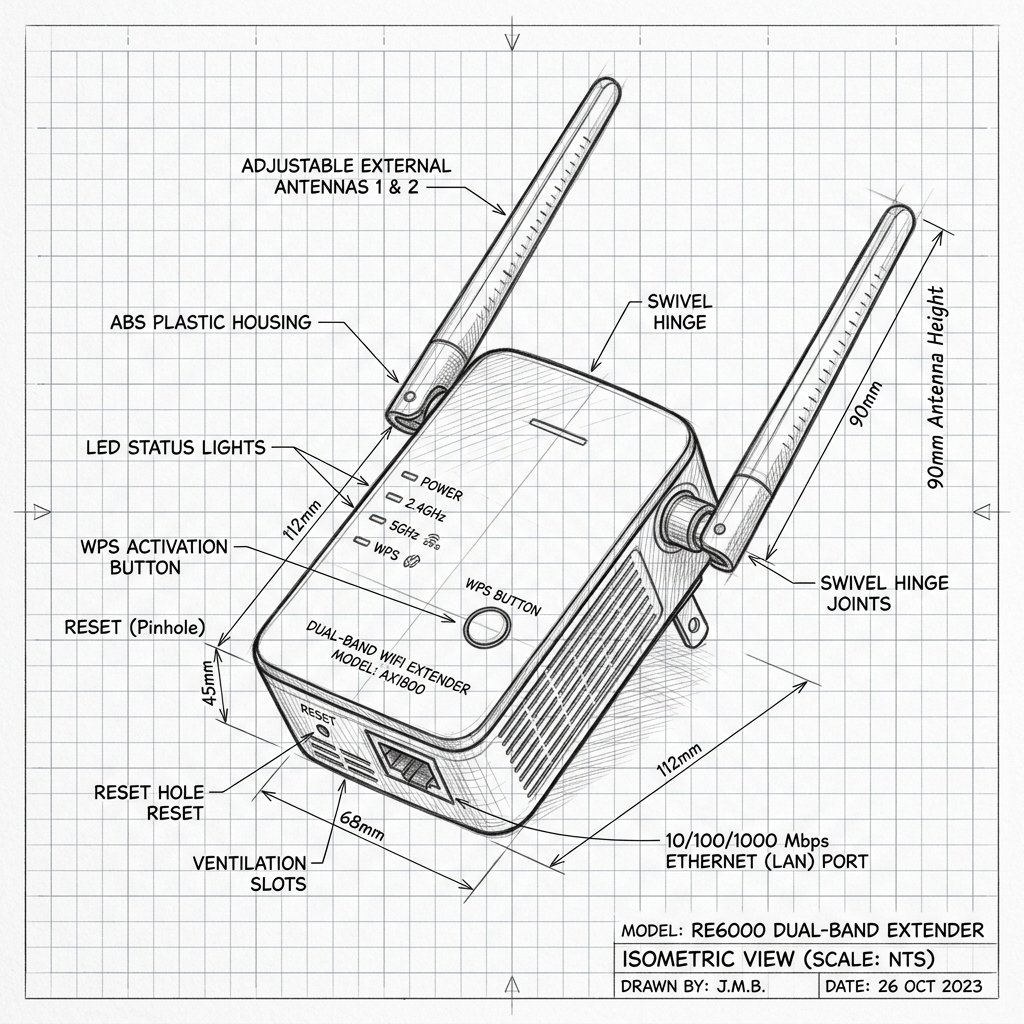
AirTies AirTies 4991 Diagram
Reference this technical blueprint during setup to locate the power input, status LED indicators, one-touch WPS pairing button, and Ethernet port on your device.
The AT&T All‑Fi Extender (AirTies 4991) is a next‑generation smart Wi‑Fi extender designed to work with AT&T’s BGW620 All‑Fi Hub. It provides Wi‑Fi 6E / Wi‑Fi 7‑ready mesh coverage with multi‑gig Ethernet ports, and uses the exact same Wi‑Fi name and password as your hub for seamless roaming across your home network.
Quick 3-Step Checklist
- Check AT&T All‑Fi service: Make sure your AT&T internet is active and your account supports All‑Fi Extender service (many multi‑gig plans include the 4991 at no extra cost; other plans may require a monthly fee).
- Verify BGW620 hub Wi‑Fi: Confirm your BGW620 All‑Fi Hub is online and Wi‑Fi is working properly before adding the extender.
- Install Smart Home Manager: Download and sign in to the AT&T Smart Home Manager app to perform guided setup and placement of the 4991 extender.
AirTies 4991 Extender Overview
- Wi‑Fi technology: Smart Wi‑Fi extender designed for AT&T All‑Fi, with support for Wi‑Fi 6E and Wi‑Fi 7 standards alongside the BGW620 hub, creating a mesh network that shares a single SSID and password.
- Ports: Two high‑speed Ethernet ports (5 Gbps class) for Ethernet backhaul to the BGW620 and for connecting wired devices or switches in the extended area.
- Mesh behavior: The 4991 acts as a mesh access point—once paired, it adopts the Wi‑Fi name and password configured on the BGW620 and provides seamless roaming across the network.
- Service requirement: The All‑Fi Extender must successfully pair to the hub and be on an account with Extended Wi‑Fi / All‑Fi extender service; pairing failures or certain LED states can indicate that service is not active.
Reality Check: Did you buy this used? Just like previous models, the AirTies 4991 is tightly integrated with AT&T’s internal billing systems. If you purchased this device from a third-party seller (like eBay or Amazon) but do not pay AT&T the monthly fee for the "All-Fi Extender" service, the hub will block the extender from pairing. You must have the service active on your account.
Initial Setup with Smart Home Manager
AT&T recommends using the Smart Home Manager app for simple installation and management of the All‑Fi Extender 4991.
Step 1: Download and Sign In
- On your smartphone, download the AT&T Smart Home Manager app from the Apple App Store or Google Play, or scan the QR code printed in the 4991 setup materials for a quick link.
- Open the app and sign in with your AT&T user ID and password linked to your internet service.
Step 2: Attach Extender to All‑Fi Hub (Ethernet)
- Place the 4991 extender near the BGW620 All‑Fi Hub for first‑time pairing.
- Connect one end of the white Ethernet cable to an available Ethernet port on the back of the BGW620 hub.
- Connect the other end of the cable to one of the blue Ethernet ports on the back of the 4991 extender; the Ethernet port LED should turn solid green once firmly connected.
- Plug the extender’s power supply into an electrical outlet (not controlled by a light switch) and into the power jack on the extender; the power jack LED on the back should turn solid green within about one second.
Step 3: Add Extender in Smart Home Manager
- In Smart Home Manager, tap Network, then look under Home Network Hardware or Wi‑Fi equipment and choose the option to Add extender.
- Follow the prompts to detect and add the All‑Fi Extender (4991); the app will guide you through pairing and confirm once the extender is successfully integrated.
- During pairing, the front LED on the extender will pulse white as it boots and pairs; once pairing is complete, the front LED should turn solid white, indicating you are all set.
Wireless Placement and Mesh Optimization
Once the 4991 is paired, you should move it to the area that needs improved Wi‑Fi, following AT&T’s placement guidelines for optimal performance.
Step 1: Unplug and Move
- Unplug the extender from power and disconnect the Ethernet cable from both hub and extender.
- Move the extender to the room or location where you want better Wi‑Fi coverage—ideally between the BGW620 hub and the weak‑signal area.
- Do not place the extender on the floor; use a shelf or open surface away from heavy obstructions and interference sources such as large appliances or baby monitors.
Step 2: Plug In and Check LEDs
- Plug the extender into a nearby electrical outlet; the power jack LED should turn green, and the front LED will begin pulsing white as it boots.
- After boot and wireless reconnection to the BGW620, the front LED should again turn solid white, indicating a good mesh connection in the new location.
Step 3: Verify in Smart Home Manager
- Open Smart Home Manager and confirm a green check mark or “online” status next to the 4991 extender in the hardware list, indicating proper network integration.
- Connect a device in the extended area to your Wi‑Fi (same SSID and password as the hub) and test internet performance to confirm improved coverage.
Alternative Pairing Methods (WPS or App‑Only)
Depending on your gateway/hub version, AT&T may also support WPS or app‑only pairing without a permanent Ethernet connection, similar in concept to the methods used on earlier AirTies extenders.
Basic WPS‑Style Pairing
- Plug the 4991 near the BGW620 hub and wait for it to power up (front LED pulsing white while booting).
- Press the WPS button on the hub, then within about 1 minute press the WPS or pair button on the extender; LEDs will indicate connection status and should eventually show solid white when successful.
- After pairing, move the extender as described above and re‑check that the front LED remains solid white at the new location.
Warning: Resetting your All‑Fi Extender 4991 will erase pairing and custom configuration, and will require re‑activation through Smart Home Manager or AT&T support. Always try a soft power cycle (unplug, wait 10–15 seconds, plug back in) before performing a factory reset. If you do factory reset, make sure your BGW620 hub is online and your AT&T account still has All‑Fi service enabled so you can successfully re‑pair the extender.